Flight Path Visualizer
Click here to open the application in a new window.
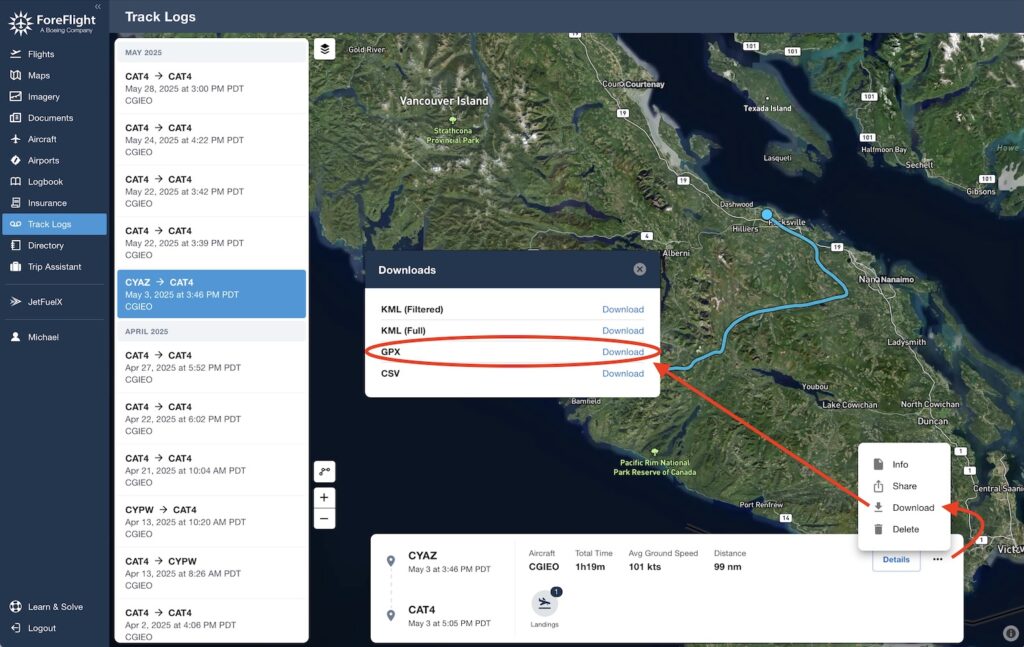
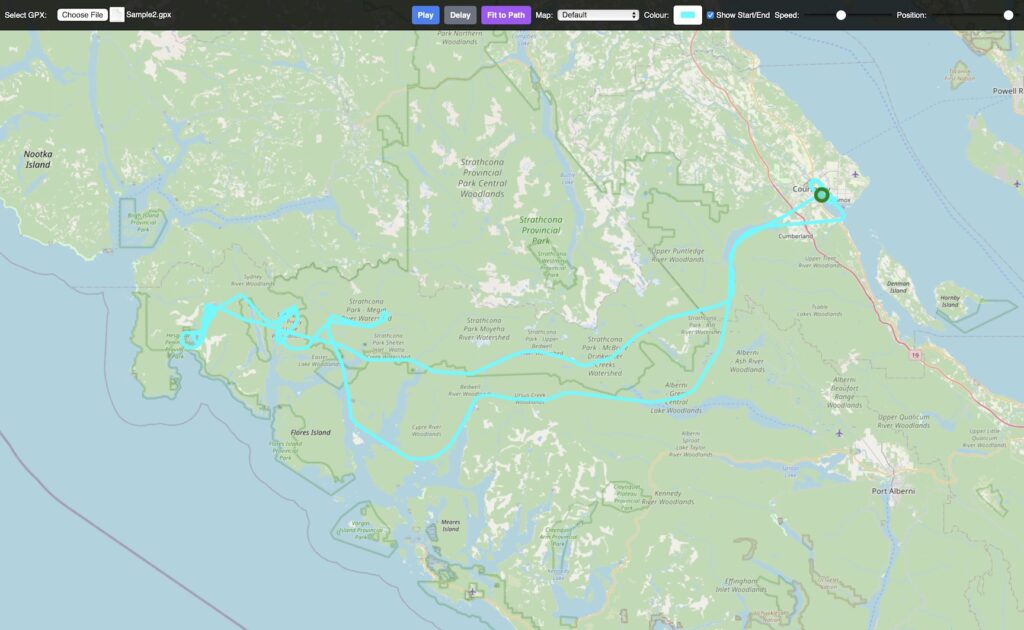
This web application is designed to visualize ForeFlight Track Logs that you export in .GPX format on a map. You can customize the map view and the path’s appearance, as well as control its animation. It can be used to create animated videos of your flight path by doing a screen recording of the animation running in full-screen mode.
A sample .GPX file can be downloaded here.
Controls and Buttons

The controls are located in a bar at the top of the screen, which automatically fades out after 5 seconds of inactivity (no mouse movement or clicks). Move your mouse or click anywhere on the screen to make the controls reappear.
- Select GPX: This button allows you to upload a .gpx file from your computer. Once the file is loaded, the path will be displayed on the map, zoomed to fit the entire track.
- Play: This button starts the animation of the path from its current position. If the animation is already playing, the button changes to “Pause,” which will stop the animation.
- Delay: This button is for screen recording. When clicked, it will wait for 10 seconds before starting the animation. This gives you time to start your screen recording and allow the control bar to fade away completely for a cleaner video.
- Fit to Path: This button will immediately zoom and pan the map so that the entire loaded track is visible within the map view.
- Map: This dropdown menu lets you choose the background map layer:
- Default: A standard OpenStreetMap view.
- Satellite: A high-resolution satellite image map.
- Satellite w/ Names: The satellite map with geographical names and boundaries overlaid.
- Topographic: A map that includes elevation lines and terrain details.
- Black: A pure black background, ideal for creating a clean path animation for post-production video editing.
- Colour: This color picker allows you to change the color of the track line.
- Show Start/End: This checkbox toggles the visibility of the start and end markers of the track. The start is a green dot, and the end is a red dot.
- Speed: This slider controls the playback speed of the animation.
- Position: This slider lets you manually scrub through the track’s animation. You can move the slider to any point to see the path up to that specific percentage.
How to Download ForeFlight Track Logs as GPX Files